
Ansible and AWS EC2
An exercise in how you can use Ansible to build a VPC in AWS

This is an exercise to highlight some more advanced features of Ansible and using these features in a practical way to build a fully functioning VPC in Amazon EC2, complete with all Elastic IPs, NAT Gateways, security groups and even some instances running in different Availability Zones.
Pre-requisites
Considering what we are about to do, below is the relatively short list of pre-requisities.
- A functioning ansible environment. Personally I use “pyenv” and “pip”.
- As we are using AWS EC2 we will need the boto (pip install boto) and boto3 (pip install boto3) utilities.
- An AWS account with an IAM ACCESSID that can provision things in EC2.
- An IAM ssh key-pair.
- Some basic understanding of AWS EC2 products and services
- Last but not least, clone this repo using “git”
The vpc-builder playbook
Once you have cloned the repo you will a standard directory structure for a playbook. Many options exists but personally I always follow the same style.
- build-site.yml - contains all the roles that must be executed to build everything that makes up the “virtual” site.
- group_vars - contains all variables that have been defined along with their values
- inventory - this is where the inventory that is used to build the site is located.
- roles - this is a directory containing the roles that have been defined, along with the various sub-directories that make up the roles hierarchy.
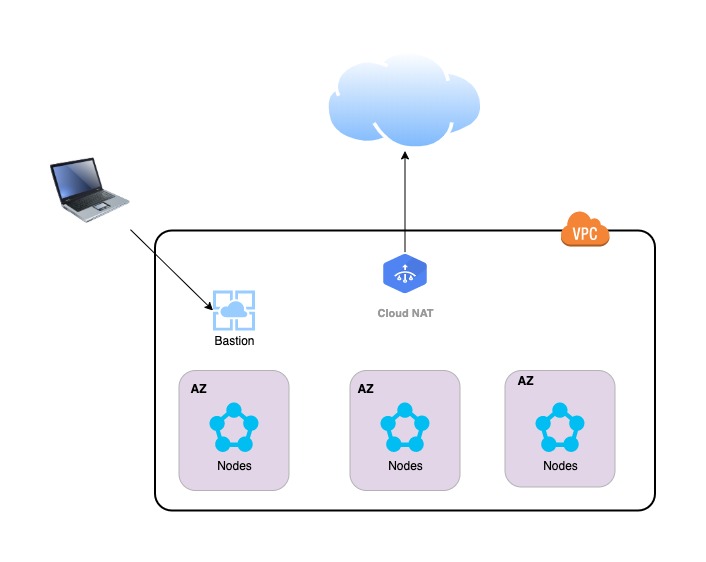
Above is a picture of the environment we will be building. it is worthwhile pointing out some features. The only way to access the instances in the VPC is via the Bastion host. The only way to access the Bastion host is from your home network, as the security group is only whitelisting that IP address. All the nodes have internet access via the NAT Gateway only. The instance type is configurable and a certain multiple of instances per Availability Zone are instantiated by the playbook.
The inventory
This is an unusual case where the inventory file called ‘local’ only has a single entry.
[local]
localhost ansible_python_interpreter="/usr/bin/env python"
This is because all interactions with AWS EC2 are going to be performed on your local machine and leverage the boto utilities to communicate with AWS.
Configuration
The configuration is all self contained within the ‘group_vars’ folder. Three separate folders exist, but the main place of interest is the vars.yml file in the local folder. Some parameters worthy of explanation. The aws_access_key and aws_secret_key take the values from the corresponding variables in the vault.yml file in the same directory. The set of parameters under tags are just to allow you to understand and report on items from a billing perspective. The region is the region where the VPC will be created (us-east-1). The local_ipaddress is the public IP address of your home network as specified by your ISP. The root_device_name and root_device_size are instance type specific, but allow you modify the root volume of the instance when it is created, which can be useful in some circumstances. The image is the AMI image ID (I think this one is a reasonably recent Ubuntu image). The variable count is the number of instances that will be started in a given Availability Zone and finally, the keypair (ansible_deploy) is the name that you gave to the IAM ssh key pair that you uploaded into the AWS IAM console.
# AWS Provisioning Info
#
#Vaulted Variables
aws_access_key: "{{ vault_aws_access_key }}"
aws_secret_key: "{{ vault_aws_secret_key }}"

# Tags
tags:
  owner: "owner"
  team: "team"
  costcenter: "cost center"
  businessunits: "business unit"
  environment: "environment"
  application: "application"
  build: "vpc-builder v1.0"
  type: "undefined"

# VPCs
vpc_name: "Testing: VPC"
vpc_cidr: 10.10.0.0/20
region: us-east-1

# Bastion subnets
public_subnet_name: "Testing: bastion subnet"
public_subnet_cidr: 10.10.1.0/24

# Bastion security group info
local_ipaddress: "99.251.52.174"

# Bastion instance details
#instance_type: i3.8xlarge
instance_type: t2.micro
root_device_name: /dev/sda1
root_device_size: 15
image: ami-0565af6e282977273
keypair: ansible-deploy
count: 1
It is also worth while mention the Ansible Vault, A Vault is simply a means of specifying certain variables that are encrypted and password protected. In this particular case the vault contains my AWS Access Key and Secret. You can edit your vault file using the command
ansible-vault edit vault.yml
For completeness this vault contains just the following two lines
vault_aws_access_key: SOMERANDDOMACCESSKEY
vault_aws_secret_key:  SOMERANDOMSECRETKEY
In addition to the variables contained in the local group_vars file, additional variables and different values for those variables can be set in the configuration files located in the DC folders. For reference this is the vars.yml file in the DC1 folder.
# AWS Provisioning Info
#

# Subnets
subnet_name_az1: "Testing: DC1 AZ1"
subnet_cidr_az1: 10.10.2.0/24
subnet_name_az2: "Testing: DC1 AZ2"
subnet_cidr_az2: 10.10.3.0/24
subnet_name_az3: "Testing: DC1 AZ3"
subnet_cidr_az3: 10.10.4.0/24

# Security Groups
sg_name: "DC1 Security Group"
nat_name: "DC1 Route NAT"

# Instances
instance_type: t2.micro
root_device_name: /dev/sda1
root_device_size: 15
opscenter_instance_type: t2.micro
image: ami-0565af6e282977273
keypair: ansible-deploy
count: 1
Note some new variables for specifying subnet and security group information in that particular DC, along with Instance related information. We will discuss which variable take precedence later.
The roles
The easiest may to visualise what is happening, is to see what happens when you run the playbook, is to first examine the build-site.yml which builds the entire site.
- hosts: local
  connection: local
  gather_facts: false
  roles:
  - create-vpc
  - create-bastion-security-group
  - create-public-subnet
  - create-bastion

- hosts: local
  connection: local
  gather_facts: false
  vars_files:
  - group_vars/DC1/vars.yml
  roles:
  - create-private-security-group
  - create-private-subnet
  - create-instances
  - gather-inventory

- hosts: local
  connection: local
  gather_facts: false
  vars_files:
  - group_vars/DC2/vars.yml
  roles:
  - create-private-security-group
  - create-private-subnet
  - create-instances
  - gather-inventory
Some things worthy of comment. Note the settings for hosts:, connection: and gather_facts:. The playbook is executing commands on local laptop, so you can connect locally and no need to gather any facts as you already know all the information you need. The vars_files: option allows you to manually specify additional configuration variables that will be used and take precedence over any already defined values.
The easiest way to see what it does is simply to execute the playbook, remembering to enter your vault password when prompted.
ansible-playbook --ask-vault-pass -i inventory/local build-site.yml
As always, ansible provides a good descriptive log of what it is doing based on the task lists defined in the individal roles
PLAY [local] ****************************************************************************************

TASK [create-vpc : Create Strategic VPC] ************************************************************
ok: [localhost]

TASK [create-vpc : Create Internet Gateway for Strategic VPC] ***************************************
ok: [localhost]

TASK [create-bastion-security-group : bastion security group for internet access] *******************
ok: [localhost]

TASK [create-public-subnet : Create Public Subnet] **************************************************
ok: [localhost]

TASK [create-public-subnet : Set up public subnet route table] **************************************
ok: [localhost]

TASK [create-public-subnet : Add a NAT Gateway] *****************************************************
ok: [localhost]

TASK [create-bastion : Launch a Bastion Instance] ***************************************************
changed: [localhost]

PLAY [local] ****************************************************************************************

TASK [create-private-security-group : security group DC1 Security Group for private subnet] *********
changed: [localhost]

TASK [create-private-subnet : Private Subnet AZ1] ***************************************************
changed: [localhost]

TASK [create-private-subnet : Private Subnet AZ2] ***************************************************
changed: [localhost]

TASK [create-private-subnet : Private Subnet AZ3] ***************************************************
changed: [localhost]

TASK [create-private-subnet : Set up private subnet routes via NAT] *********************************
changed: [localhost]

TASK [create-instances : Launch Instance in AZ1] ****************************************************
changed: [localhost]

TASK [create-instances : Launch Instance in AZ2] ****************************************************
changed: [localhost]

TASK [create-instances : Launch Instance in AZ3] ****************************************************
changed: [localhost]
.
.
.
Throughout these roles you see the use of the register keyword in certain modules e.g. within the create-vpc role. This is a convenient way of capturing and storing information about the items that are created. These values can then be accessed if they need to be used later. For example, if you create a VPC you need to register the information that is returned, so that later you will know the VPC ID when you are creating subnets to associate with it. As always the documentation is awesome!
Finally the gather-info.yml play and associated gather-inventory role, will populate a file called ec2-hosts in the inventory folder with the IP addresses of the instances that the playbook generated.
The Ansible playbook defines the end state, if you run the playbook a 2nd time, what do you think happens? Does it create a 2nd VPC? more instances? Does the playbook fail because the VPCs and Security Groups already exist? Try it and find out, because to me that is the true lightbulb moment. If you run the same playbook again, it will create nothing, because it already exists. If you terminate an instance, it will only create one instance to replace the instance that was terminated.
I remember a time when build a DC and getting a command prompt on multiple machines with all the networking correct, would take weeks or even months. Now it is faster than making a cup of tea and perfectly recorded in the ansible playbook.